
Situation: By default, downloaded files, images, and videos are saved in the download folder. However, you may need to move them to a specific drive or folder. Fortunately, Google Chrome allows you to change the default path of the download folder.
Task: The task at hand is to customize the download folder location in Chrome. This will enable you to save downloaded files in the desired location.
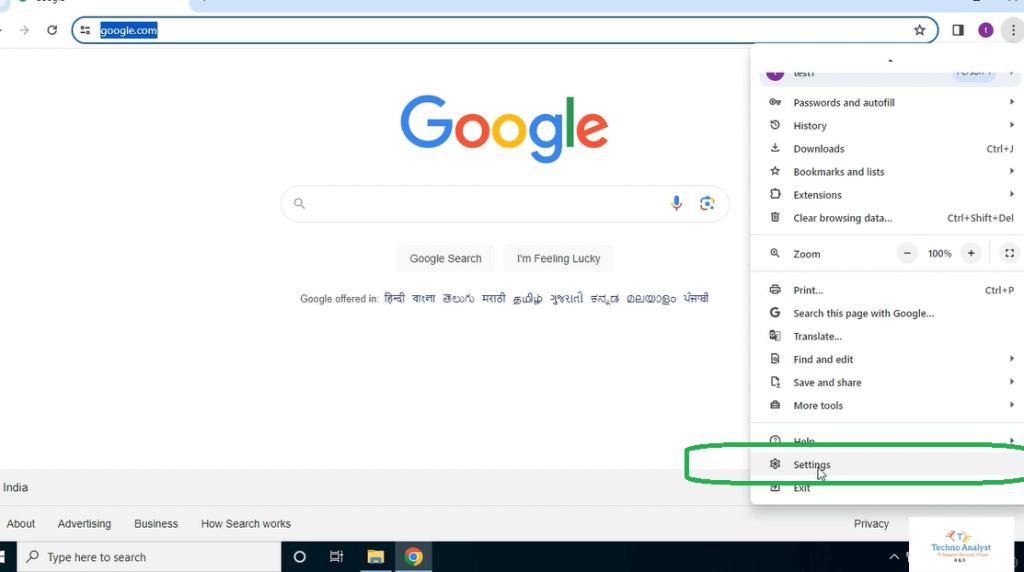
Action: To change the download folder location, follow these steps:
- Open Google Chrome and go to the settings.
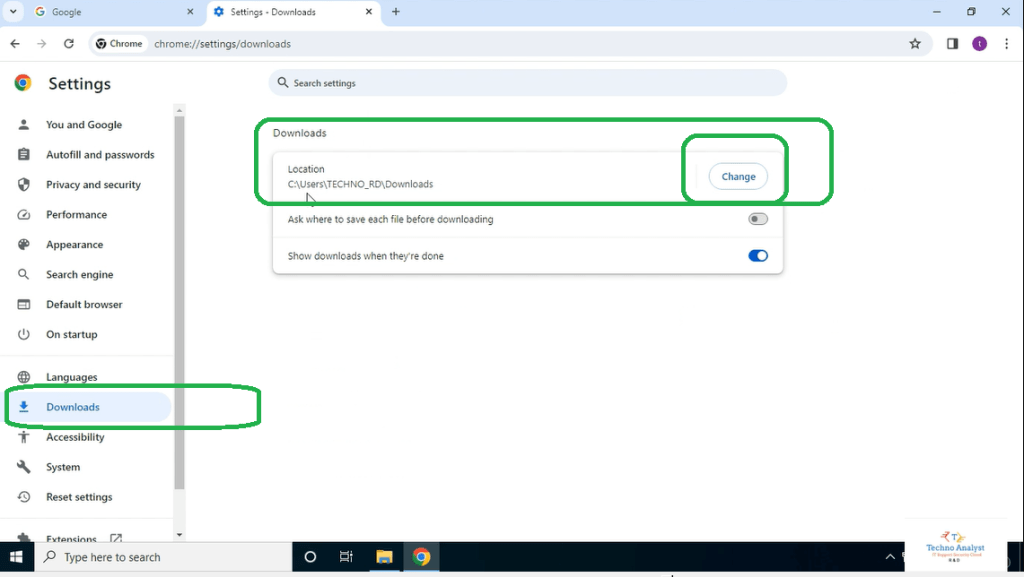
- Look for the download option and click on it.
- In the download settings, you will find the option to change the location.
- Select the drive or folder where you want to save all your downloaded data.
Result: After changing the download folder location, all your downloaded files will be saved in the defined location. This allows for easy access and organization of your files. Additionally, if you wish to keep the folder private, you can hide it. If you would like to learn how to hide a folder, please mention it in the comments.
Tutorial: For a visual guide on changing the download folder location in Google Chrome, you can watch the video provided below, starting 3.22 from the minute.

 Rahul Dattaria
Leave a comment